
Tips to enhance security when using iMessage on iPhone
Besides blocking unwanted iMessage messages, you should also pay attention to security measures to protect your personal information when using iMessage:
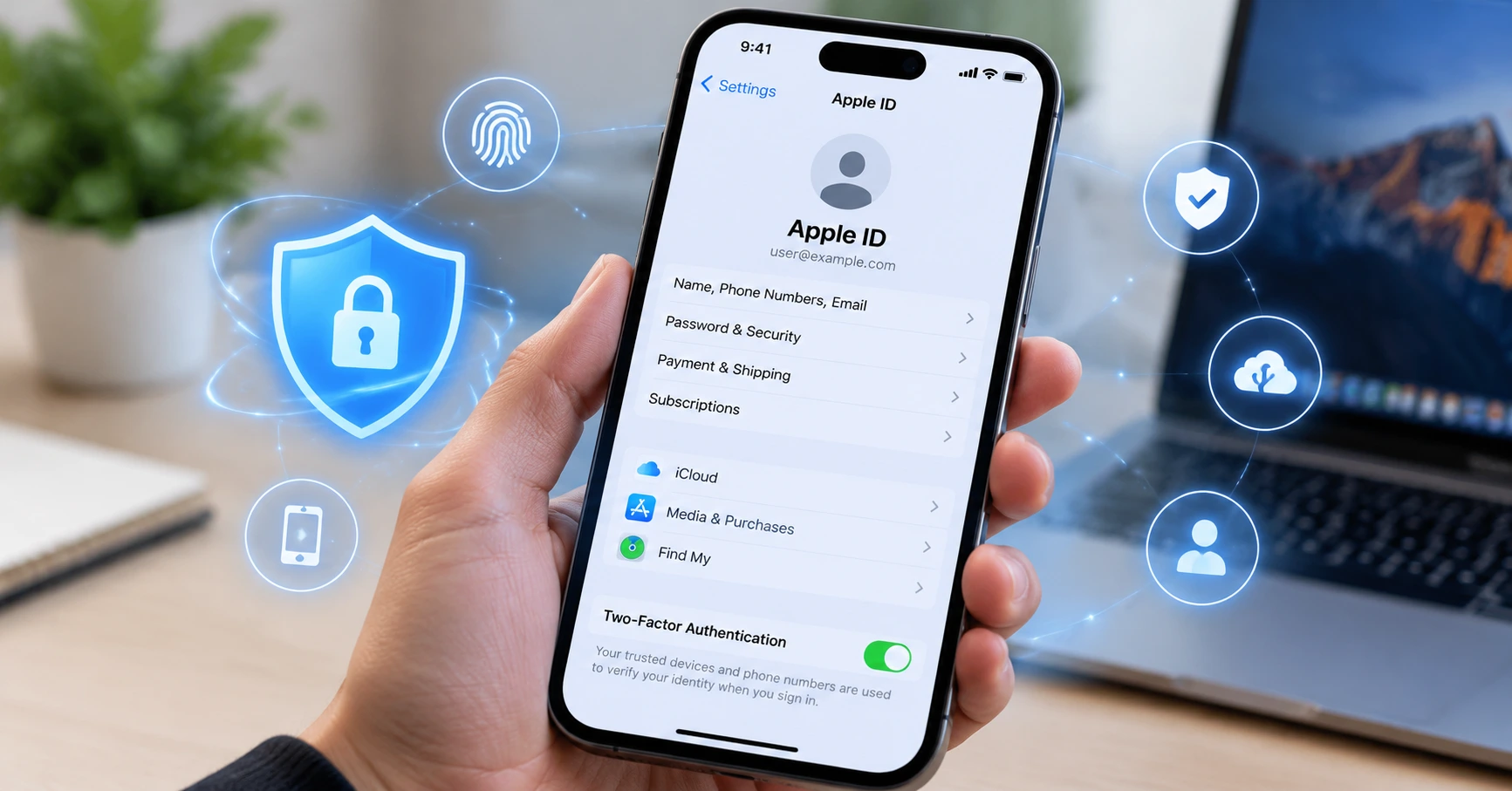
- Enable two-factor authentication (2FA): Strengthen your Apple ID account security by turning on two-factor authentication to prevent unauthorized access.
- Do not share verification codes with others: The Apple verification code sent via message is only for you; do not give it to anyone to avoid scams.
- Check the contact before replying: For messages from unknown numbers, be cautious and do not open links or download attachments from unknown sources.
- Use a strong password for Apple ID: Set a complex password combining uppercase letters, lowercase letters, numbers, and special characters to increase security.
- Regularly update iOS: New versions often patch security bugs and improve features, helping protect the device better.
The tips above will help you use iMessage more safely, reducing the risk of attacks or scams via messages.
Learn how to block iMessage messages on iPhone quickly and effectively at hubet.
Learn how to block iMessage messages on iPhone quickly and effectively at sv66.
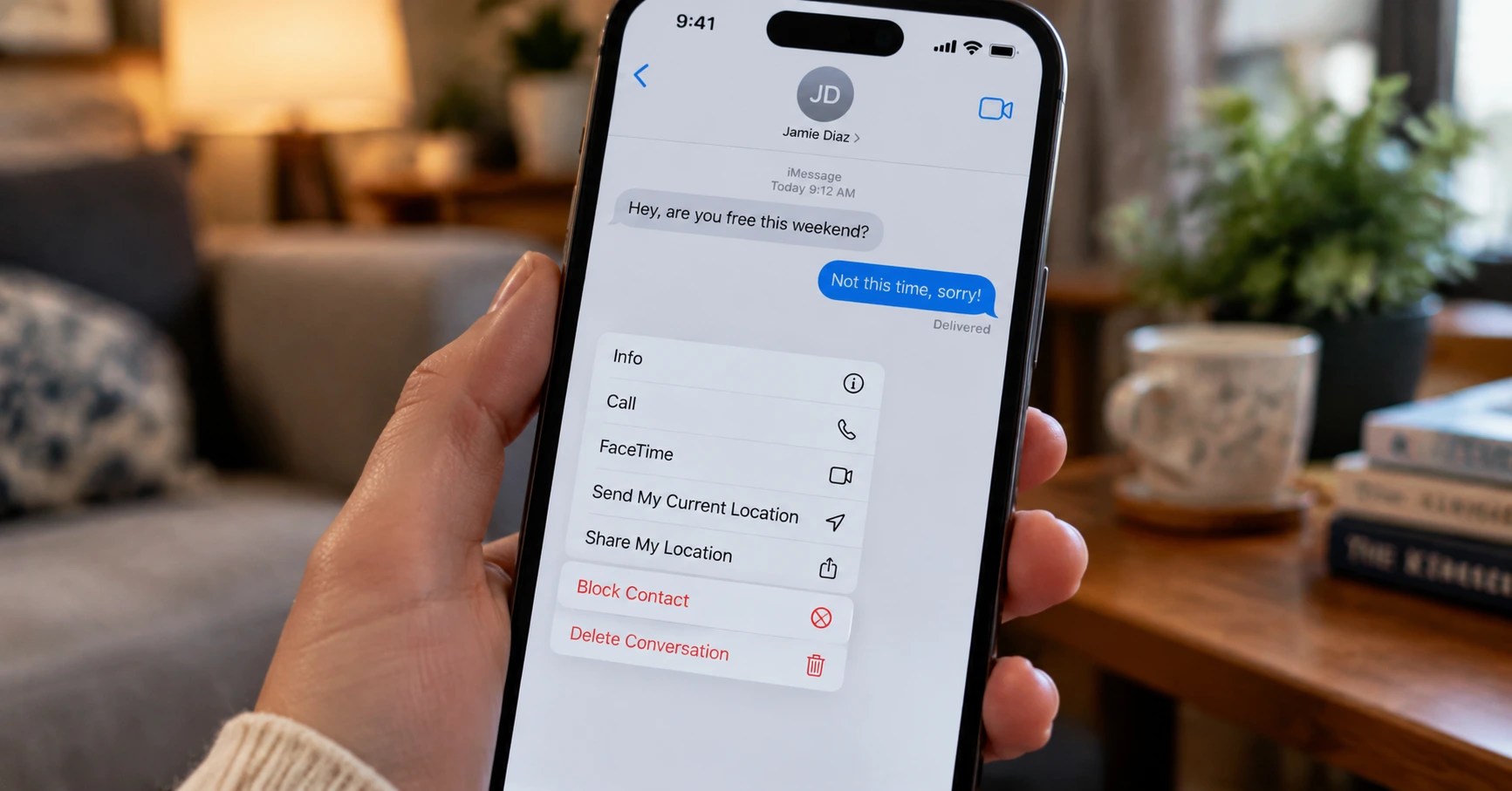
How to handle being blocked from iMessage messages on iPhone
If you suspect someone has blocked your iMessage messages, here are some signs and ways to handle it:
- No response received: Sent messages are not replied to for a long time even though the recipient is still active normally.
- Check message status: iMessage messages usually show the status “Sent” or “Delivered”. If you do not see this status, you may have been blocked.
- Try calling: If the call cannot connect or automatically goes to voicemail, there is a chance you have been blocked.
- Contact through another method: Try contacting via email, social media, or meeting in person to confirm.
If you were blocked due to a misunderstanding, talk it out honestly to resolve the issue. Avoid sending too many messages or calls that cause annoyance.
Apps that help block messages on iPhone
Besides the default message-blocking feature on iPhone, you can use some third-party apps to manage and block messages more effectively:
- Truecaller: A popular app for identifying and blocking spam calls and messages across multiple platforms.
- Hiya: Helps detect and block unwanted phone numbers and junk messages.
- RoboKiller: Automatically blocks spam calls and messages, and supports creating a personal blacklist.
Note: when using third-party apps, you should download them from official sources such as the App Store and carefully read the access permissions to protect your personal information.
Other ways to avoid junk messages on iPhone
- Enable the filter unknown senders feature: Go to Settings > Messages and turn on Filter Unknown Senders to automatically sort messages from strangers.
- Report spam messages: When you receive junk messages, you can report them directly to Apple by tapping Report Junk in the Messages app.
- Do not share your phone number publicly: Avoid posting your phone number on social media or public websites to reduce the risk of spam.
- Be careful with suspicious links: Do not tap links or download apps from messages of unknown origin to avoid scams or malware infections.
More questions about blocking iMessage messages
- Question: Can iMessage messages be blocked by group?
- Answer: Currently, iPhone does not support blocking messages by group directly. You need to block each phone number in the group if you want to stop messages from those members.
- Question: Will the sender know if their message is blocked?
- Answer: The sender will not receive any notification that they have been blocked. Their messages will not be delivered to you, and there will be no error indication.
- Question: Is there a way to recover blocked messages?
- Answer: Messages from blocked numbers will not be stored on the device, so they cannot be recovered. You can only unblock the contact to receive new messages from them.